Native Spaces Grid
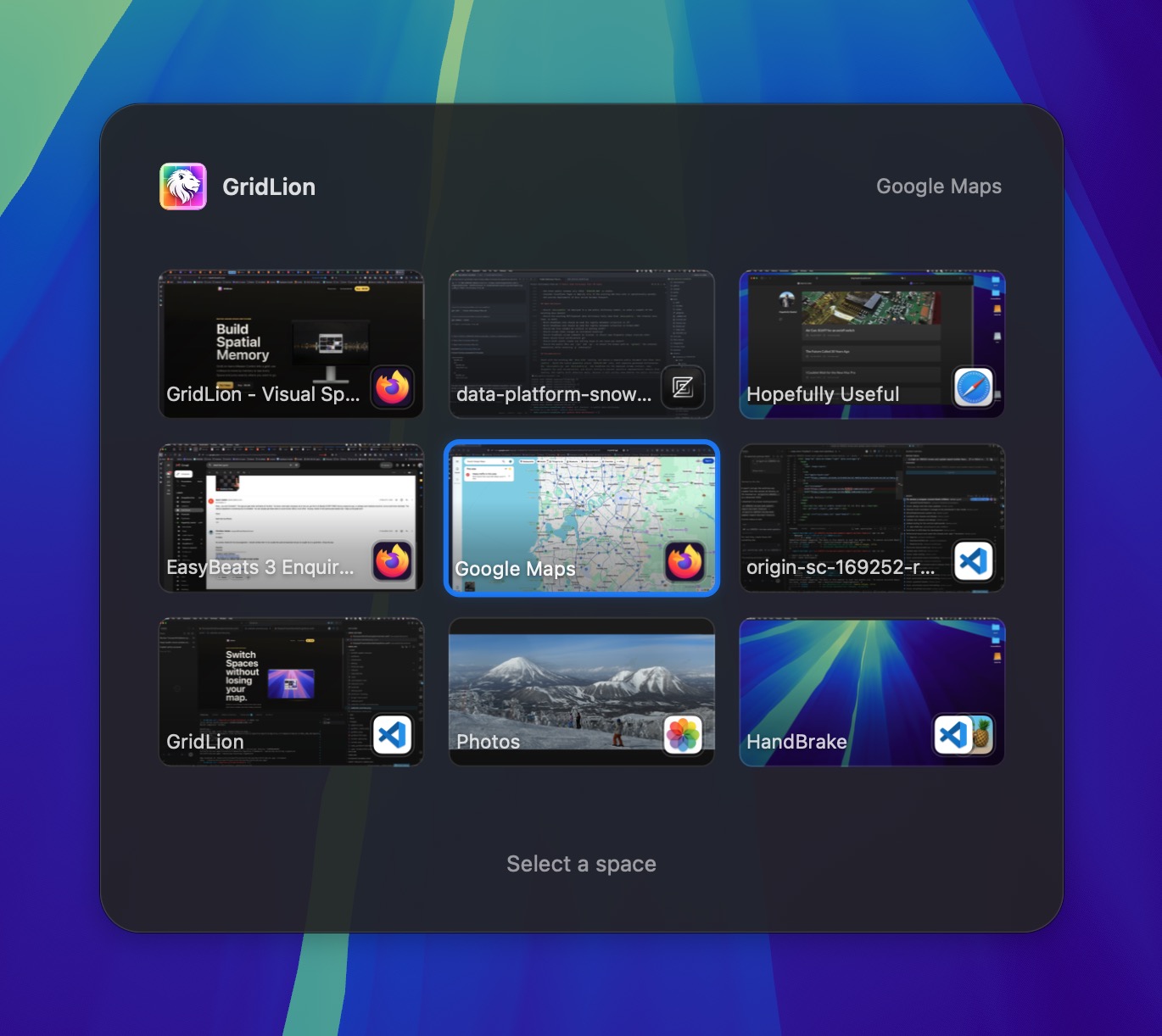
Add/remove as many spaces and full screen apps as you like in Mission Control. GridLion will wrap them into a grid of your choosing.
 GridLion
Native macOS space switching
GridLion turns Mission Control into a grid: use hotkeys to move by memory or see every Space and jump exactly where you want to go.
7-day trial. Lifetime license for 3 devices. One-time online activation; no recurring license checks. macOS 13+.
Snow Leopard Vibes
Stop counting swipes. GridLion allows you to place spaces in physical grid locations, allowing muscle memory to take over.
Built for heavy Space users
Add/remove as many spaces and full screen apps as you like in Mission Control. GridLion will wrap them into a grid of your choosing.
Use keyboard shortcuts to switch left, right, up, down or jump direct to a space on any display.
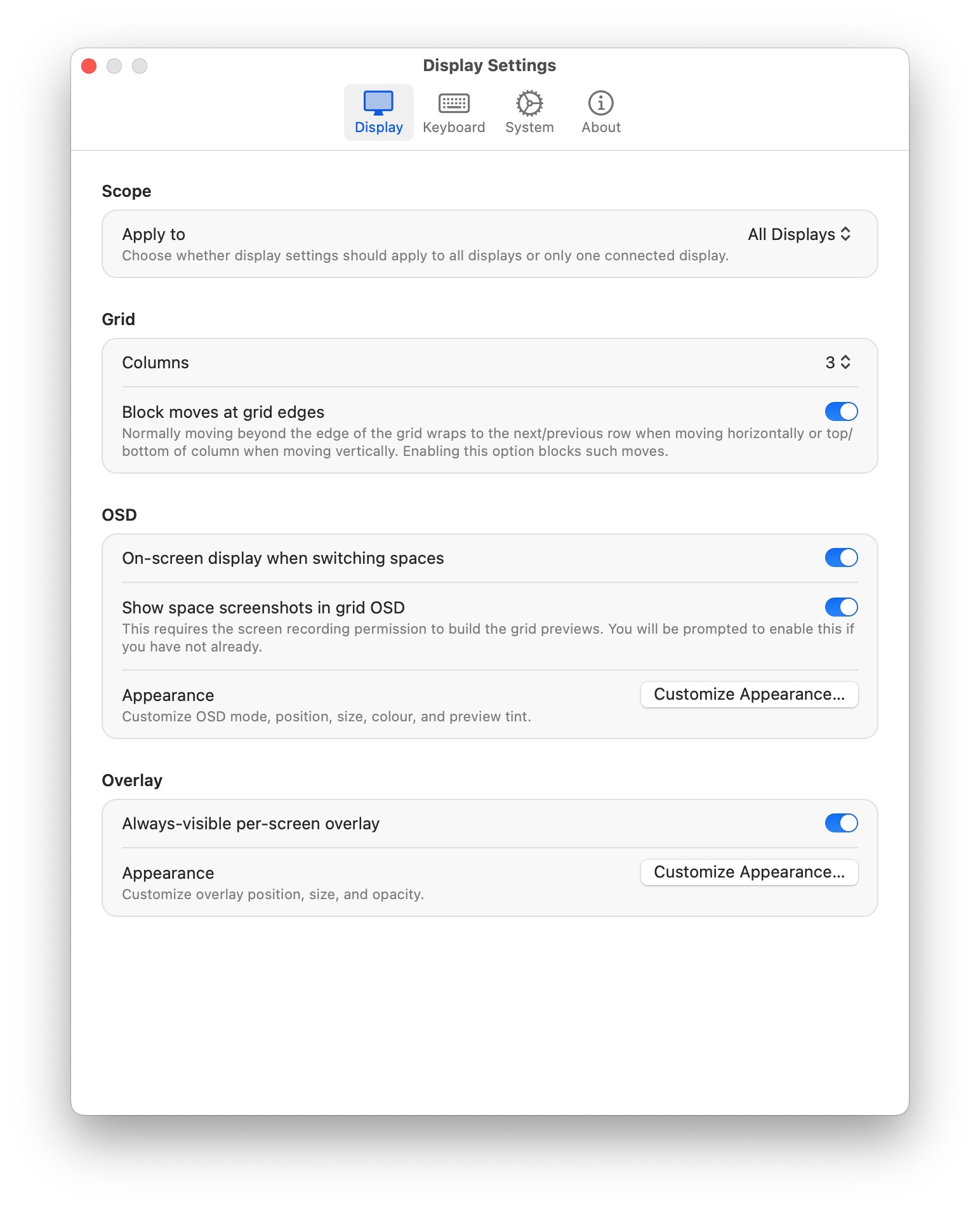
Optionally keep a small always-visible grid on each screen so the active Space is never a mystery.
Although its all still Mission Control under the hood, you are free to arrange the grid how you like.
Simple utility, sharp edges handled
Want different size grids per display? No problem. Want the ability to jump to any space anywhere with a shortcut? OK!
Lightweight by design.
Questions worth answering
Yes, if you want it to. GridLion can be your everyday way to navigate, arrange, add, and remove Spaces, while macOS still owns the underlying Spaces, full-screen apps, and tiled windows. It also works alongside Mission Control, so you can use either whenever it suits you.
Yes. You can move left, right, up, or down, jump directly to Spaces 1 through 10, return to the last-used Space, and open the grid picker with a shortcut.
Yes. Trackpad navigation is optional, and you can choose the finger count, swipe direction, and whether GridLion switches after a delay, during the swipe, or after confirmation.
Yes. Leave Switch spaces while navigating off, start dragging a movable standard window by its title bar, and use a configured directional or direct Space shortcut. This works between ordinary Desktops on the same display.
Yes. GridLion can follow the cursor display or target a specific display with its own hotkeys, grid layout, OSD, and overlay. For the best per-display behavior, enable Displays have separate Spaces in macOS.
Yes. Create a named Workspace in Keyboard > Workspaces and choose a visual Space for each display. One shortcut can then switch the configured connected displays together, while unavailable targets are skipped.
It is an optional compact grid that stays visible on a display and highlights the active Space. You can enable it per display and adjust its placement, size, opacity, and active color.
Accessibility is required for global shortcuts and Space switching from any app. Without it, macOS will not let GridLion receive those shortcuts reliably or perform the switching action.
Screen Recording is optional. It lets GridLion show screenshot-backed Space previews on macOS 14 and later. Without it, switching, keyboard control, the picker, and overlays still work; grid cells use app icons or simple fallbacks instead.
Open Health Check... from the GridLion menu bar menu. It is the fastest way to confirm the required permissions and system state. After changing a permission, quit and reopen GridLion.
GridLion is built around spatial memory. Turning off macOS automatic rearranging keeps your Mission Control order stable, so the grid location you learn today is still where you expect it tomorrow.
GridLion supports macOS 13 and later. It works closely with macOS Spaces and Mission Control, so major macOS updates can occasionally require GridLion fixes to keep switching behavior sharp.
Back in the day MacOS Snow Leopard supported a grid of spaces. Then next version Lion moved to the horizontal only style we have now. GridLion is the grid Lion should have had.